 Sign in ☰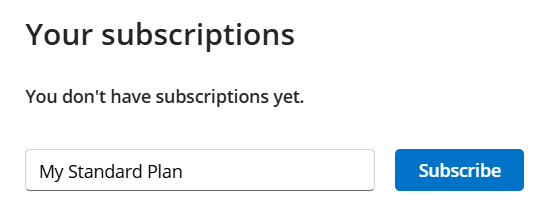
Press “Subscribe”
An email will be sent to an administrator at Lecot that needs to approve the subscription
An email will be sent to the email address that was provided to follow up from there
You will be redirected to a page where you can follow up your status:

You need to wait untill you get an email with the confirmation that the plan is approved.
When the subscription request is approved, you will also get an email on the provided email address
In your profile on the Developer Platform, you will also see the information:

API subscription header
Navigating the Developer Portal (signed in)
APIs
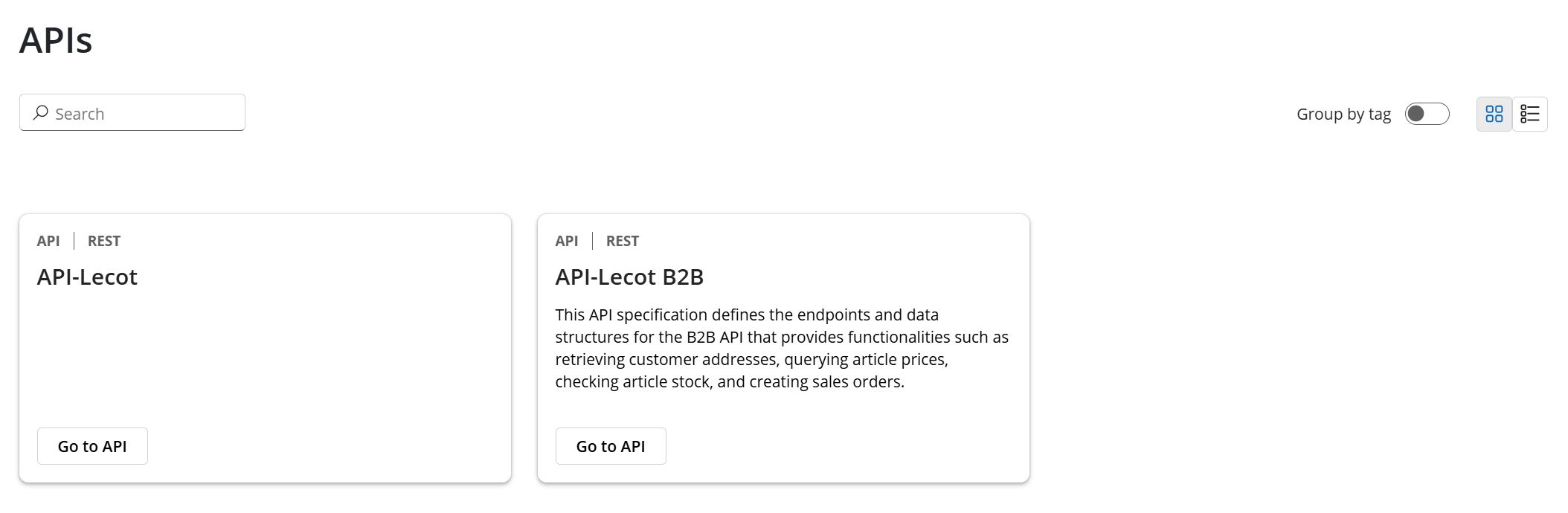
On the page of the APIs, you can see all of the APIs that are made publicly available by Lecot. There are possibly more APIs that are only visible if you have the correct subscription.
Every API has a description that explains what the API can be used for.
When clicking on “Go to API” for an API, some more details becomes available in the API Details page.
API Details
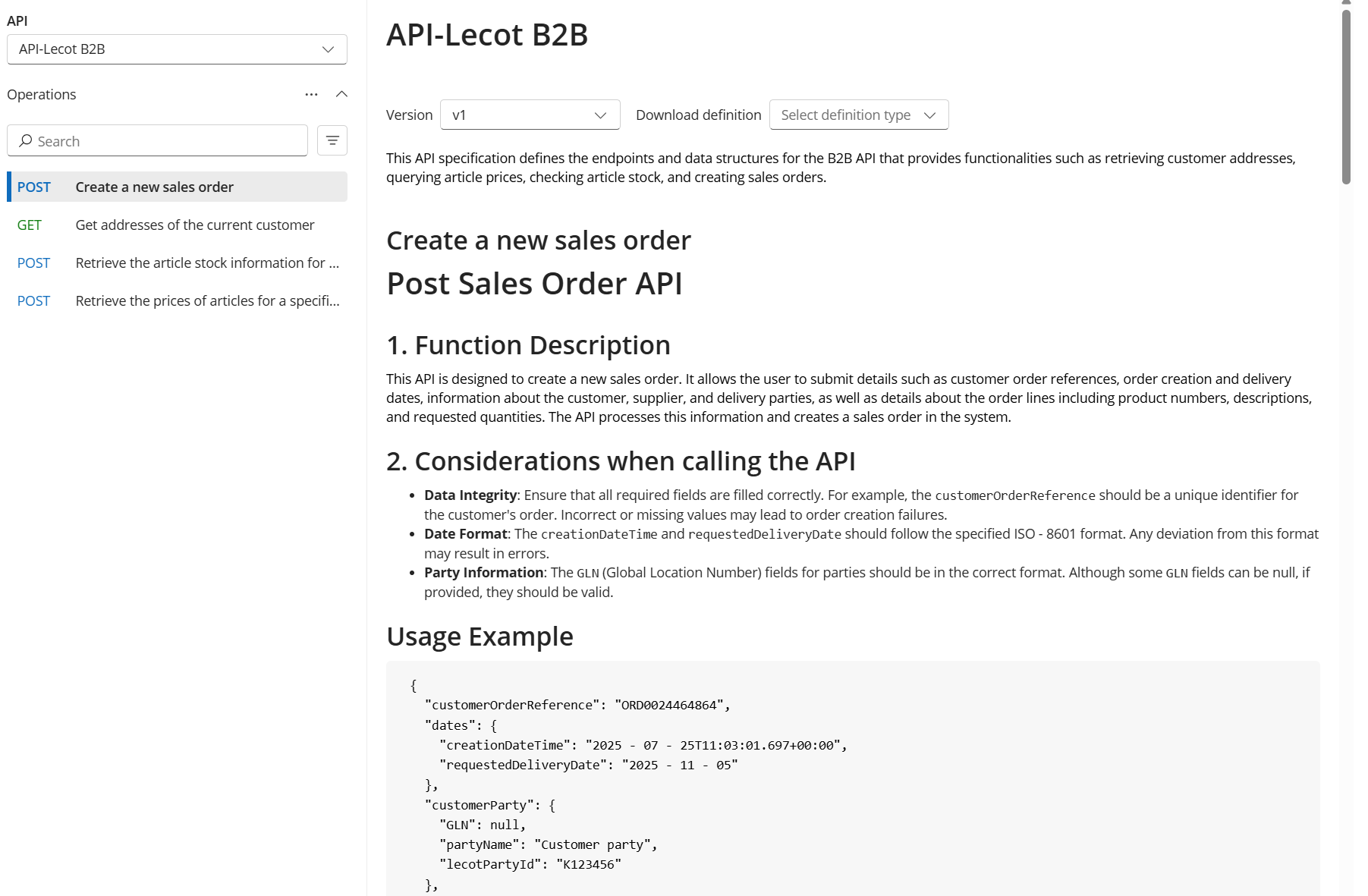
On the left of the page you can find the different endpoints you can execute. Clicking on an endpoint will open more details for that. You can find a description at the top, lower you can find information on the request body, response body, HTTP status return codes, error messages, etc.
There is also the “Try this operation” button that will help you actually execute the endpoint.
Using the API
To use the API, you have to subscribe to a plan. Most of the (if not all) APIs will require a subscription. Subscriptions are free, but give you access to a certain set of APIs and endpoints.
You can first try the endpoint using the Developer Console to see the possible inputs and outputs.
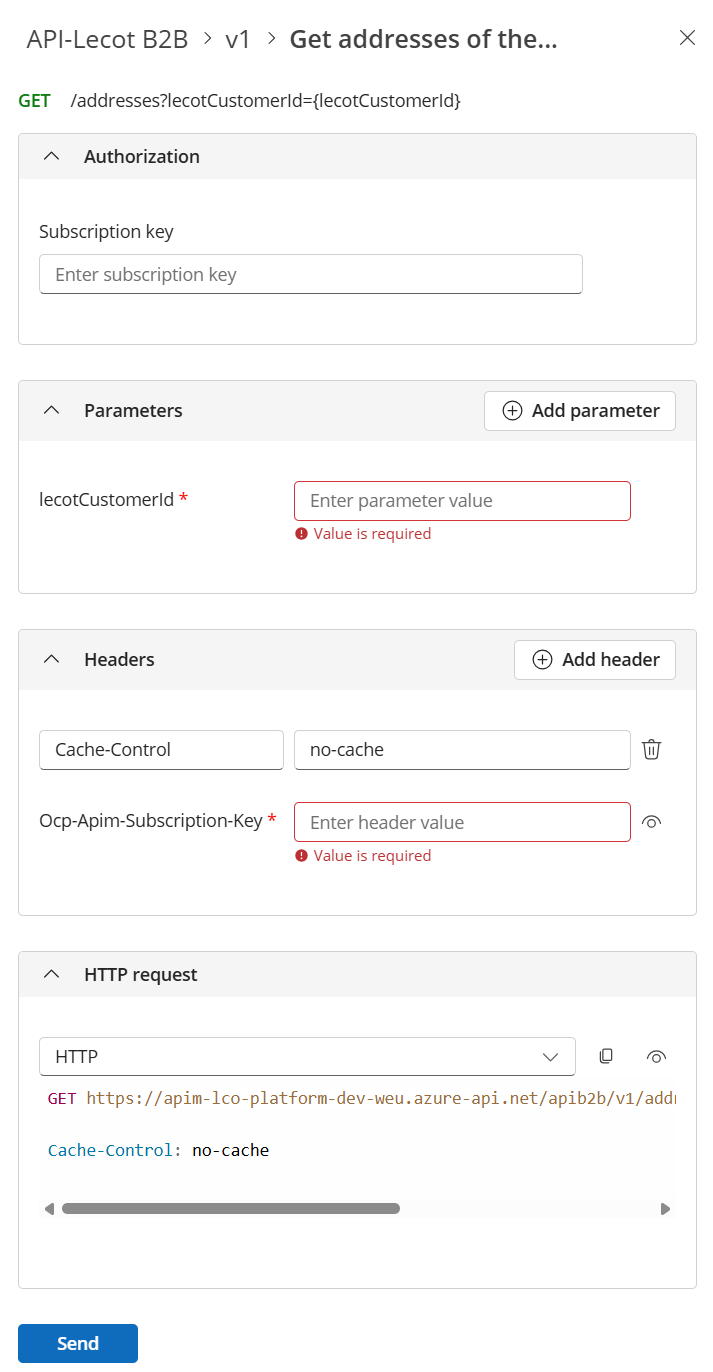
In the screenshot above, you cannot select a plan and the Ocp-Apim-Subscription-Key is empty; this is the look you get when you are not signed in to an account with an active subscription plan.
When you are signed in to an account with a subscription plan, you will see:
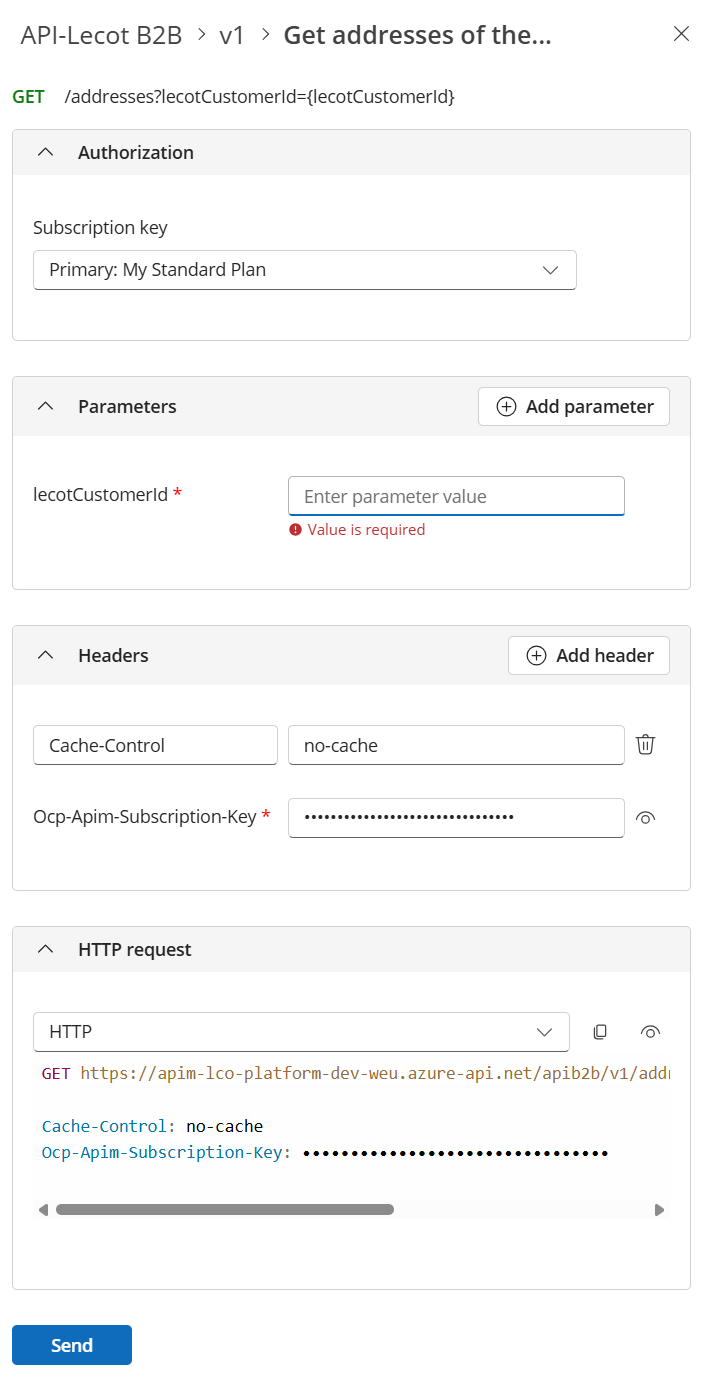
In the screenshot above, you can see that the subscription key is set to the primary key. And the same key is also automatically provied in the field for Ocp-Apim-Subscription-Key.
In the HTTP request block, you can change from “HTTP” to another method if you want to see a code example to execute it. This can sometimes help to implement the API in your code. If you are authenticated with a correct subscription key, you will automatically see that added too.
Lecot API
Lecot offers different APIs to different type of partners. There are internal APIs that can be used to more direct partners of Lecot. While there are also public APIs that can be used by clients of Lecot.
Onboarding
Tips & Tricks
It is preferred to use the mail address of the IT administrator
Create account
Press “Sign in” at the top right
Click on “Sign up” just below the title
Fill in the required information
Confirm account
You will receive an email on the email address provided during account creation.
Probably from
apimgmt-noreply@mail.windowsazure.comClick on the link to active the linked account
You will be redirected to the Developer Portal where you can now log in using the provided credentials
Subscribe to a plan
Open the Developer Portal
Press “Products” in the menu bar at the top
Choose your plan by clicking on it
It opens a detailed page of what is included in the plans (including the APIs)
You can change the different plans at the top using the select-box, to compare
See NeXT - API - Subscription plans for more information on the plans
Give your plan name when you want to subscribe to it: